Trip.com E-Ticket: How to Download, Print & Use Your Booking

By Trip.com
June 16, 2026
This article tells you everything you need to know about Trip.com e-tickets for flights and trains. It will help you understand what an e-ticket is and how to
Getting your e-ticket, printing it out, and more.

More Travel Deals Beyond Trip.com E-Ticket
Make every journey more affordable with exclusive discounts on flights, hotels, car rentals, and eSIM services, all in one convenient platform.
Discover Great Savings on Flight Tickets Worldwide
Find unbeatable deals on global and domestic flights, helping you plan your trips with maximum savings and flexibility.


Save Instantly with 10% Off Hotel Reservations
Book your ideal stay and enjoy 10% off across a wide range of hotels, from budget-friendly options to premium luxury stays.
 NO.1
NO.1
























Unlock Up to 20% Off Flights & Hotels with Mastercard on Trip.com
Enjoy exclusive savings when you pay with Mastercard on Trip.com, get up to 20% off return flights and hotel bookings through the app.
Enjoy 8% Discount on Convenient Car Rentals
Rent a car with ease and get 8% off, giving you the freedom to travel comfortably and explore more at your own pace.
Stay Online Anywhere with Affordable Travel eSIM
Keep connected wherever you travel with cost-effective eSIM plans that provide fast and reliable data on the go.






What is an Trip.com E-Ticket for Flights?
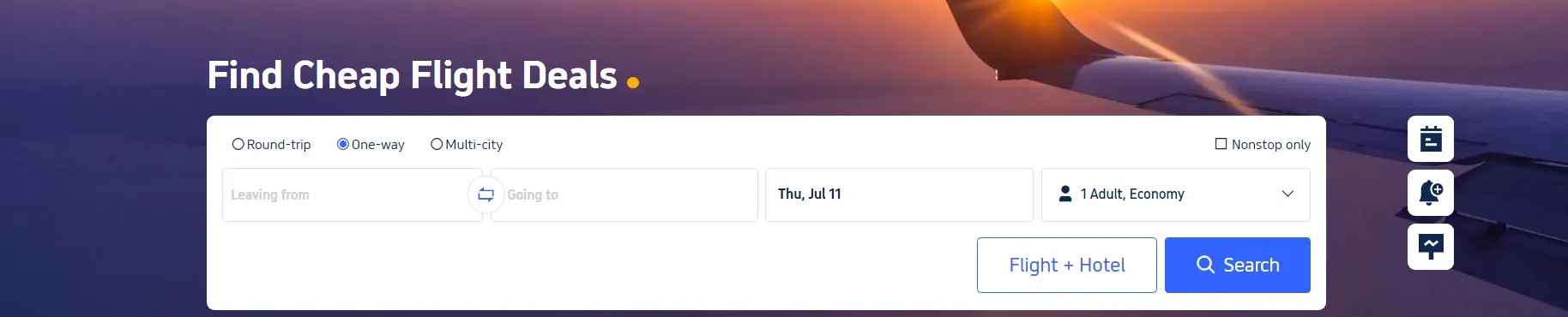
A Trip.com e-ticket, or online flight ticket, on Trip.com is a digital version of the traditional paper ticket. It’s a travel document you can easily purchase through the Trip.com website or mobile app. One of the best things about e-tickets is that you don't need to print them out, plus all your essential travel details are securely stored in the airline's database.
If your e-ticket doesn’t appear immediately, it may still be processing. Check back later or use your booking reference (PNR) to retrieve it directly on the airline’s website or app.
How to Get Your Flight E-Ticket
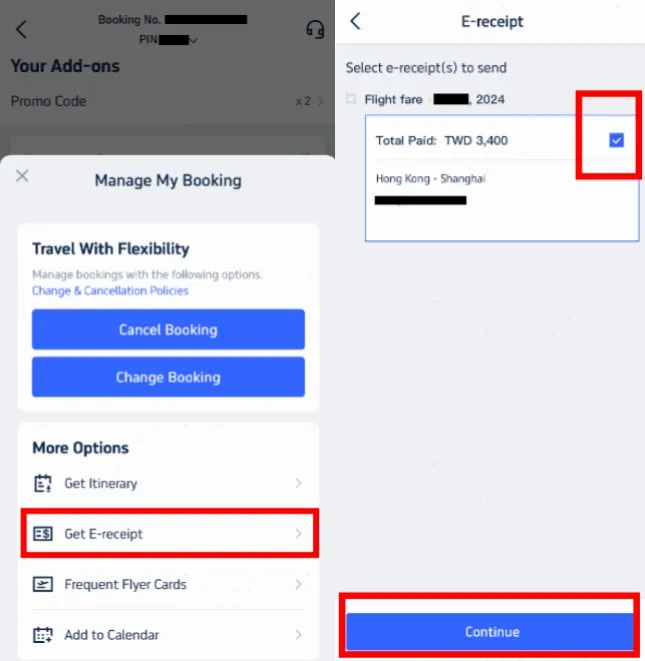
Step 1: Access "Manage My Booking"
- Open the Trip.com app and log in to your account.
- Head over to "Manage Booking".
- Under the "More Options" section, find and click the "Get Receipt" button.
Step 2: Locate your e-receipts
- On the receipt page, select the flight e-tickets you'd like to receive.
- Select the relevant e-tickets and tap "Continue".
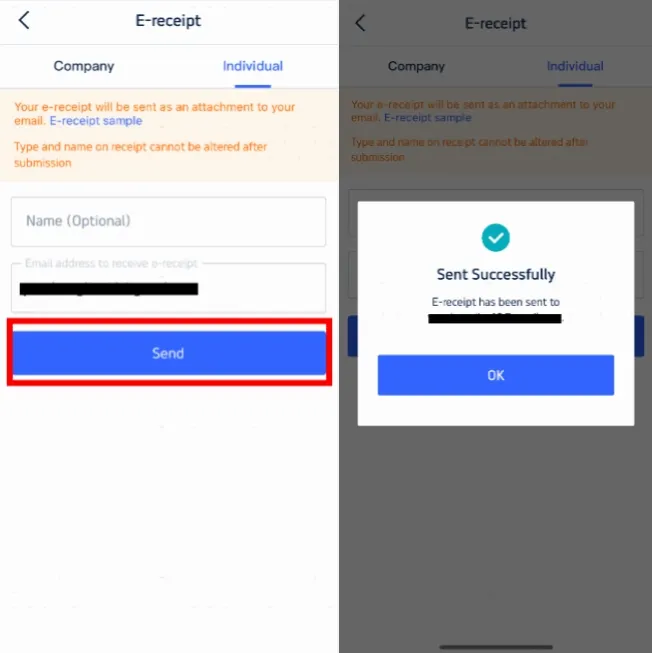
Step 3: Enter receipt details
- If you are traveling solo, please select "Individual".
- Enter your name (optional) and the email address where you'd like your e-receipt sent.
- Please note that the type and name on the receipt cannot be modified once submitted.
- Click "Submit" to continue.
Step 4: Confirm and receive your Trip.com e-receipt
- You'll receive a confirmation message letting you know that your e-receipt has been successfully sent.
- Click "OK" and check your email to download your e-receipt.
- This e-receipt serves as your flight e-ticket. You're welcome to print it out if you'd like, but it's not required.
How to Print Your Trip.com E-Ticket
Once you've purchased your ticket online, Trip.com will send you an email with your e-ticket attached. Please check your inbox for this email.
- For domestic flights, you generally don't need to carry a printed e-ticket through security checkpoints, but it's always a smart idea to keep a digital copy handy on your device.
- For international flights, we recommend carrying a printed copy of your Trip.com e-ticket to show at various security checkpoints.
Step 1: Download your e-ticket
- Open your email and download the attached e-ticket file to your device.
Step 2: Print Your Trip.com E-Ticket
- Open the file you downloaded and print it using your printer.
How to Get a Trip.com E-Ticket for Trains
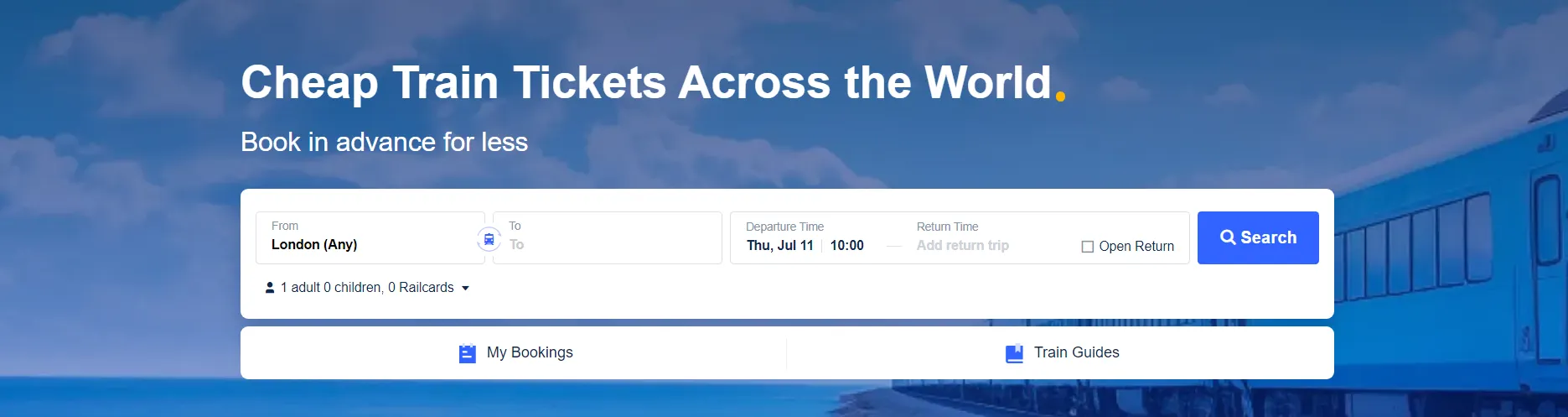
E-tickets are digital train tickets that contain your travel information encoded in a barcode. Your e-ticket will be sent directly to you as a PDF file, which you can easily save on your device.
Almost all train operators offer the option of e-tickets. When you book with Trip.com, your Trip.com e-ticket will be available as a digital ticket right in the Trip.com app.
Here is a step-by-step guide on how to get and use your e-ticket for trains:
Step 1: Book Your Train Ticket
- Head over to the Trip.com website or open the Trip.com app.
- Select "Trains" from the navigation bar.
- Enter your desired itinerary, travel dates, and other necessary details, then click "Find Trains" to start your adventure.
- Choose the train that fits your schedule and complete your booking. Please make sure to enter your full name and ID number exactly as required by the China Railway real-name policy.
Step 2: Receive your e-ticket
- Once your booking is complete, your e-ticket will be issued and sent to your email as a PDF attachment. You can also view and download your Trip.com e-ticket directly from the booking details page in the Trip.com app.
Step 3: Using your e-ticket
- On your travel day, head to the train station and make your way to the waiting area.
- When it's time to board, simply scan the barcode on your e-ticket at the self-service ticket machines. If your station doesn't have a scanner, just show your e-ticket to a staff member for manual verification.
Step 4: Boarding and Arrival
- Scan your valid passport or ID card at the ticket gate to enter the station.
- Board the train using the details on your Trip.com e-ticket, such as the train number, carriage, and seat number.
- Once you arrive at your destination, simply scan your valid passport or ID card again at the exit gate to leave the station.
Popular Searches
-
Top flight destinations
-
Top flight routes
-
Most booked airlines
-
Popular eSIM/SIM card
-
Top Car Rental Picks
-
Popular Hotel Destinations
- Flights to Manila
- Flights to Mumbai
- Flights to Kochi
- Flights to Chennai
- Flights to Kozhikode
- Flights to Delhi
- Flights to Thiruvananthapuram
- Flights to Hyderabad
- Flights to Cairo
- Flights to Islamabad
- Flights to Jeddah
- Flights to Lahore
- Flights to London
- Flights to Dubai
- Flights to Mangalore
- Flights to Karachi
- Flights to Abu Dhabi
- Flights to Riyadh
- Flights to Colombo
- Flights to Amman
- Flights to Bengaluru
- Flights to Dhaka
- Flights to Tiruchirapalli
- Flights to Kathmandu
- Flights to Kannur
- Flights from Dubai to Manila
- Flights from Dubai to Mumbai
- Flights from Dubai to Kochi
- Flights from Dubai to Chennai
- Flights from Abu Dhabi to Kochi
- Flights from Dubai to Kozhikode
- Flights from Dubai to Delhi
- Flights from Abu Dhabi to Kozhikode
- Flights from Abu Dhabi to Thiruvananthapuram
- Flights from Dubai to Hyderabad
- Flights from Abu Dhabi to Cairo
- Flights from Dubai to Islamabad
- Flights from Dubai to Jeddah
- Flights from Dubai to Lahore
- Flights from Abu Dhabi to Mumbai
- Flights from Abu Dhabi to Chennai
- Flights from Dubai to London
- Flights from Dubai to Thiruvananthapuram
- Flights from Mumbai to Dubai
- Flights from Dubai to Cairo
- Flights from Kochi to Dubai
- Flights from Dubai to Mangalore
- Flights from Sharjah to Cairo
- Flights from Dubai to Karachi
- Flights from Kochi to Abu Dhabi
- Car rentals in Melilla
- Car rentals in Breda Railway Station
- Car rentals in Toledo
- Car rentals in Napier
- Car rentals in Merida
- Car rentals in Yeongcheon-Yeog
- Car rentals in Branksome
- Car rentals in Nuremberg
- Car rentals in Varese Station
- CS1318 car rentals in Johor Bahru
- Car rentals in Squamish
- Car rentals in Paysandu Department
- Car rentals in San Pedro,Laguna Station
- Car rentals in Lesser Poland
- West Palm Beach County Apt Car rental
- Car rentals in Hamburg Central Station
- Car rentals in Sioux Falls
- Car rentals in Ankara Province
- Europcar car rentals in Miyazaki City
- Abingdon Airport Car rental
- Car rentals in Oceanside
- NICONICO car rentals in Nagano City
- Car rentals in Spain
- Bardstown Car rental
- Car rentals in Tzaneen
- Car rentals in Mostar
- Car rentals in Kiev-Demievskij
- Car rentals in Maebashi Station
- Car rentals in North White Plains Station
- Hertz car rentals in San Jose
- Hotels in Dubai
- Hotels in Sharjah
- Hotels in Abu Dhabi
- Hotels in London
- Hotels in Riyadh
- Hotels in Jeddah
- Hotels in Cairo
- Hotels in Medina
- Hotels in Makkah
- Hotels in Paris
- Hotels in Milan
- Hotels in Bangkok
- Hotels in Istanbul
- Hotels in Manila
- Hotels in Mumbai
- Hotels in Karachi
- Hotels in Tokyo
- Hotels in New York
- Hotels in Rome